



 Copy link
A bidding space is the set of information for a procurement procedure or file. It is made up of a set of basic data and the phases that can be part of the file: future bidding alert, preliminary market consultation, prior announcement, bidding announcement, file in evaluation, award, formalization, cancellation and execution. When creating a space, its basic data is defined and with which publication phase the bidding space will begin. Editors and validators are those who have access to create virtual spaces.

Define basic data, paying special attention to the chosen electronic tendering tool:
- < Digital Envelope : corporate tool for configuring the presentation of enveloped offers (different award criteria). – Requires configuration through e-Licita.
- Online submission : corporate tool for files that require the presentation of a single offer (without the need for separation into envelopes) – A default configuration is incorporated that can be modified if necessary through e-Licita.
- Other electronic tendering tools : This option must be checked whenever the Contracting Authority uses its own (non-corporate) tool for submitting bids.
- <
Files without batches:
In the case of files without batches, the default option (without batches) is left in the division into batches field in the General data tab of the file and once the rest of the data on this tab has been filled in, it is necessary to fill in the specific data of the file.

Once all the general and specific data of the file have been filled in, save the data (this action can be done at any time to save the fields filled in in the management tool form) and send the bidding space for validation:

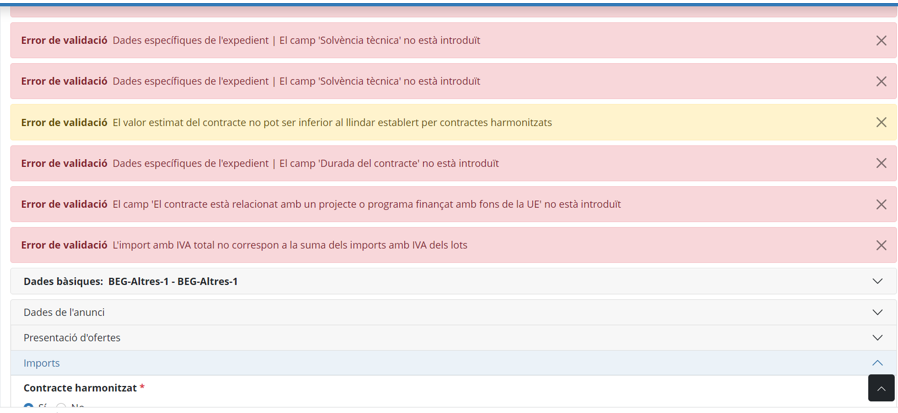
At this point, validation errors are displayed, if mandatory data is missing to be filled in, as well as recommendations that, although not constituting a validation error, are brought to the attention of the validator regarding the data to be published. The first (validation errors) appear in red when sending the bidding space for validation and will need to be modified in order to be able to reach publication. The second (recommendations) are displayed in yellow when sending it for validation and do not prevent publication.
Batch files:
In the event that batches have been defined in the general data in the section below, save the changes and define the number of batches and minimum data through Batch Management.


When you save the changes in this window, the file will have batches and display the Batch specific data tab. Clicking on it will display the drop-down list to fill in the data for each batch:

Once all general and lot-specific data have been filled in, save the data (this action can be done at any time to save the fields filled in in the management tool form) and send the bidding space to be validated:

At this point, validation errors are displayed, if mandatory data is missing to be filled in, as well as recommendations that, although not constituting a validation error, are brought to the attention of the validator regarding the data to be published. The first (validation errors) appear in red when sending the bidding space for validation and will need to be modified in order to be able to reach publication. The second (recommendations) are displayed in yellow when sending it for validation and do not prevent publication.

Publish the bidding space:
When the file has been sent for validation by the editor or validator and all validations of the mandatory fields have been passed, the file goes to the "Pending publication" status and a user with the editor role and identified in the Management tool using a digital certificate will be able to Publish the tender from the actions button.

Once done, the file will be in the " Publishing " status and will be published on PSCP when the planned date and time arrives (by default, 5 minutes after the time the publishing action is taken).
Note : in the case of files configured with Digital Envelope or Electronic Submission of Offers, it will be necessary to have previously configured the corresponding electronic tender through the e-Licita button.
