



 Copy link
1. What are the Generalitat's web forms?
The Generalitat de Catalunya, in processing with other public administrations through EACAT, uses different types of forms depending on the technology used:
PDF forms
Web forms (HTML5)
The web forms, made with HTML5 technology, are filled out directly from the browser, without the need to download any files. However, it is advisable to have updated Adobe Acrobat to be able to correctly open and consult the acknowledgment of receipt (the automatically generated documentation ticket), which is generated once the processing is complete.
These forms offer a more streamlined and simple experience.
Remember that when you start an HTML procedure of this type, you are leaving EACAT to access the forms platform of the Generalitat de Catalunya.
2. What requirements must be met to process them?
To process a web form from the Generalitat, using HTML5 technology, you must:
Have the basic permission of EACAT. You can check your permissions within EACAT in Personal space > Services AOC > EACAT Procedures. If you do not have it assigned to you, contact the person managing your entity to request it. If you need to be the signatory of any procedure, also request the signature permission.
Have access to the corresponding service. If you do not have it, you must request it from your manager from Personal space > Managers > search for the manager and send them an email.
Have a T-CAT digital certificate for a public employee, if the form of the procedure you have to sign requires advanced signature. It is the entity providing the service that decides the type of signature that the procedures that make up it must carry.[PM1.1] Therefore, the T-CAT is necessary to sign some forms. For more information on the type of signature for this type of form, see point 5.
Remember that if you are a user of more than one entity within EACAT, make sure you have used the T-CAT corresponding to the entity with which you have to process, if you have identified yourself with the T-CAT.
3. Which states have these procedures?
Procedures carried out with the Generalitat's web forms (HTML5) can have two states:
Processing completed : the process has already been sent. We will find it in the Sent , Received or Received and sent trays.
Processing not completed : the process has not yet been sent. We will find it in one of these two trays:
In draft : The form is still being edited.
To sign : the draft form has been sent for signing and is pending signature, waiting for a user with permission to sign it.
4. How can you process them?
4.1 How can you access the procedures?
In EACAT Procedures, you can find 2 types of procedures:
Initials , they are used to initiate a file and are processed from the Catalog of services and procedures.
Responses serve to provide continuity to the file and are processed from the Processing Space.
The procedures carried out using the Generalitat's web forms can be both initial and response. In both cases, the form is completed and sent from the Generalitat's forms platform.
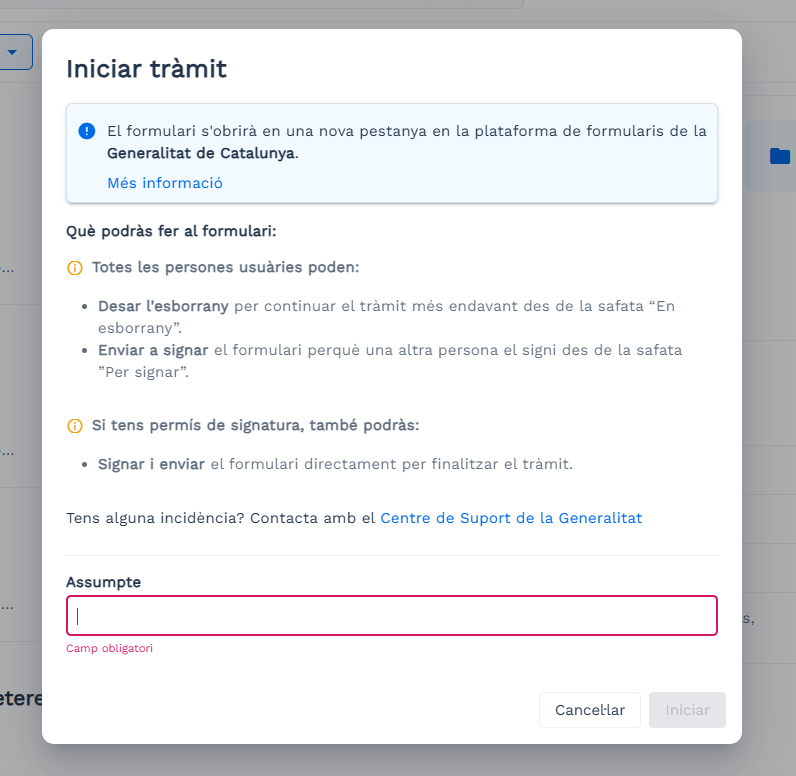
When you press Start in a procedure of this type, an information window is displayed that warns you that you will leave EACAT and access the Generalitat platform. In this same window, you must indicate the subject of the procedure and press Start again to open the form and complete it.
4.2 Processing: initial procedures
If it is an initial procedure, go to the Catalog of services and procedures, search for the service you want to use and click on it.
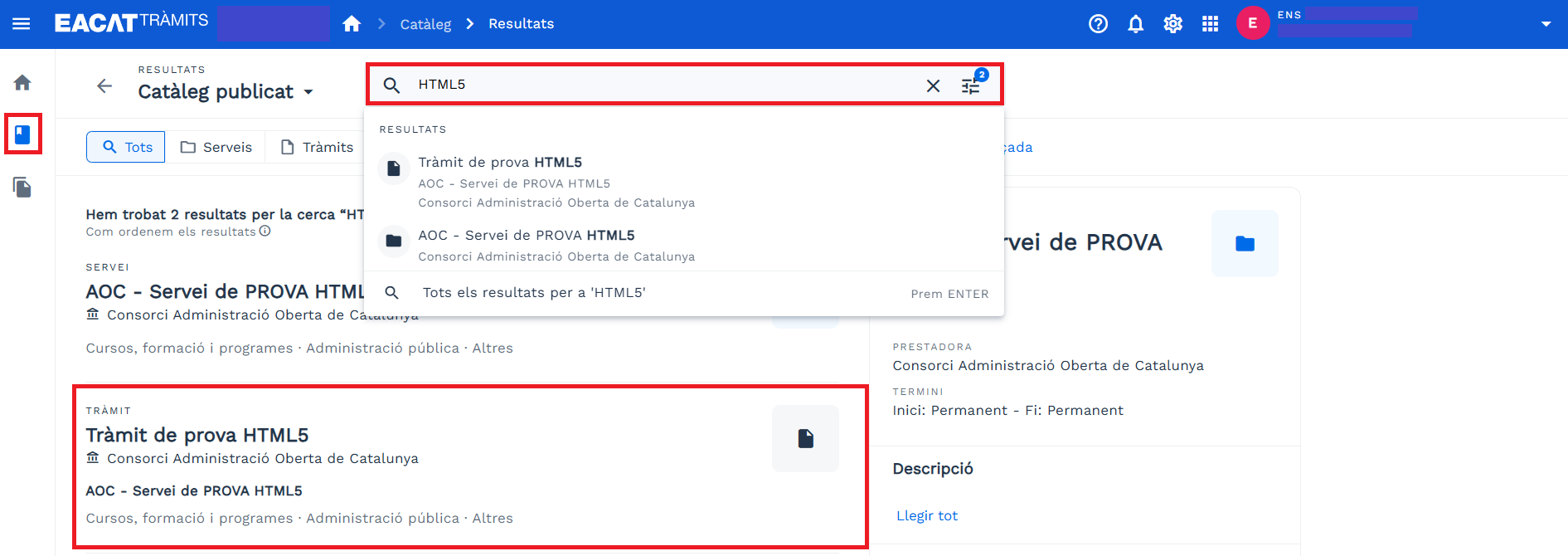
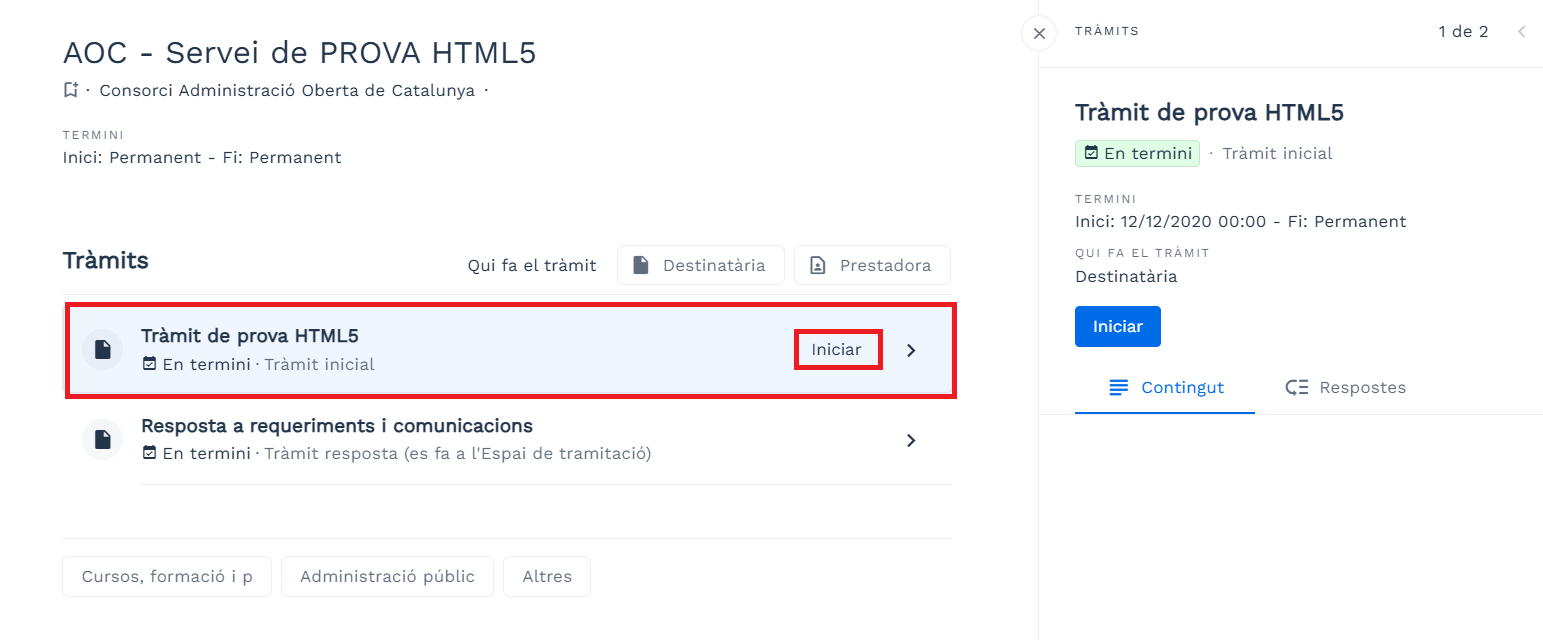
Press Start in the procedure to begin the file.
The Start procedure window opens. Fill in the subject and press the Start button. This window indicates that you are leaving EACAT and entering the Generalitat forms platform.
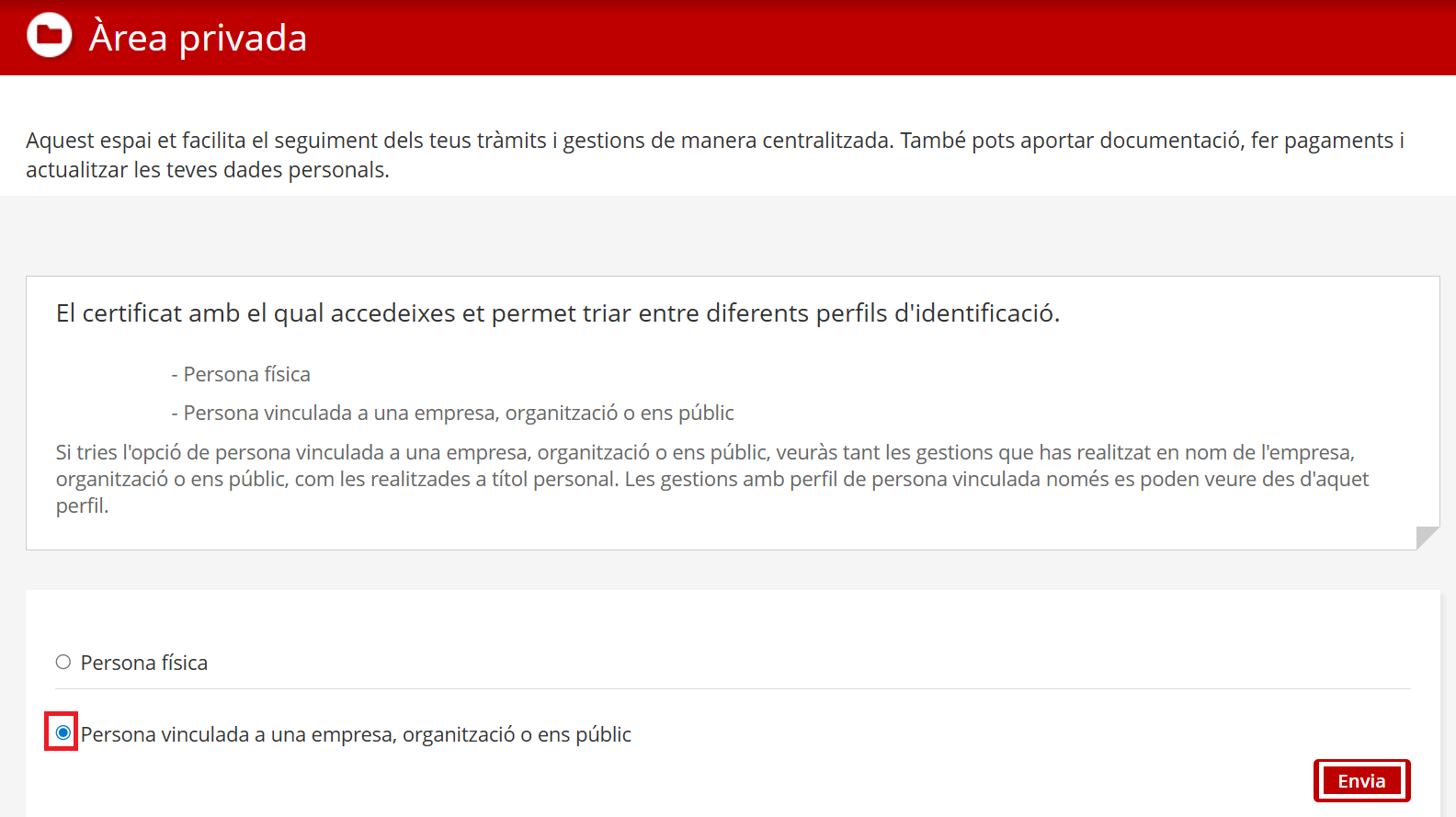
In the private area, check Person linked to a company, organization or public entity and press Send.
From here we will differentiate between:
If you are the person editing the form , you have been assigned the basic permission of EACAT Procedures. Therefore, you will be able to start and continue the procedure. The steps to follow are:
1. Fill out the form.
2. If you haven't finished it yet or want to continue it later, press Save draft. The process will be saved in the Drafts tray.
3. When the form is ready to sign:
Press Send for Signature if someone else needs to sign it.
0005_Keyboard_UserBasicNames
If you are also the signatory, you can:
Return to draft, if modifications are needed.
00003_Keyboard_AdvancedSignature_BackDraft
Send, if the form requires an ordinary signature, or Send and sign, if it requires an advanced signature (T-CAT), to finalize it.
00001_Botonera_Regular Signature
If you are the only person signing , you have been assigned the signing permission of EACAT Procedures. The steps to follow are:
4. Go to the To Sign tray to open and review the content of the procedure.
0006_Tramit_SafataPerSignar And you can:Return to the draft, if modifications are necessary. And then, we will have to wait for the editor to make the necessary amendments and return to point 4.
Send, if the form requires an ordinary signature, or Send and sign, if it requires an advanced signature (T-CAT).
00002_Keypad_Advanced Signature
Please note that if you only have the role of signer and return the document to Draft, you will not be able to send it back for signature. The editor will have to make the necessary changes and send it back to you in the For Signature inbox.
Once sent, the basic details of the procedure appear and you can download the registration receipt to your device (by pressing Download registration receipt).
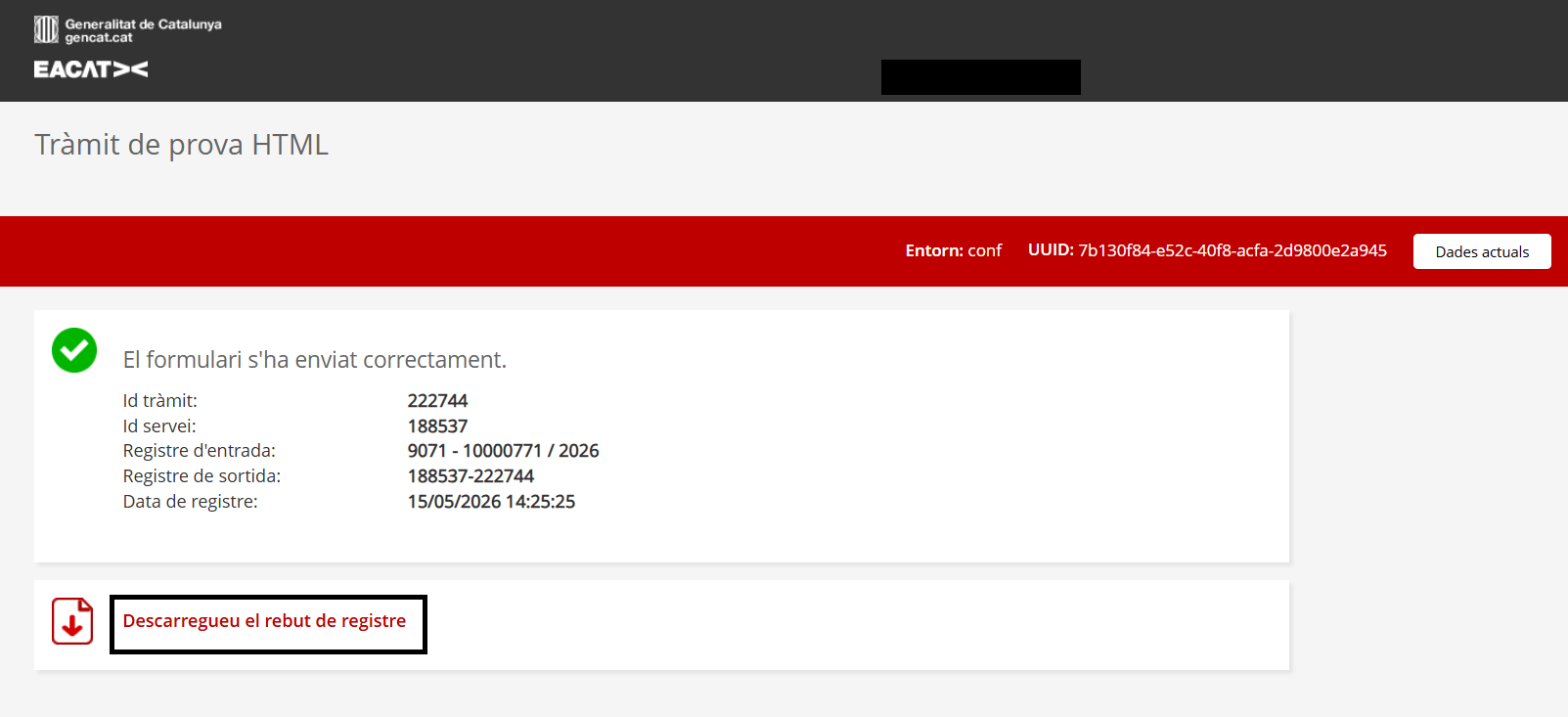
You can also download the registration receipt from the procedure documentation (ticket), if you enter the procedure in the Processing Space.
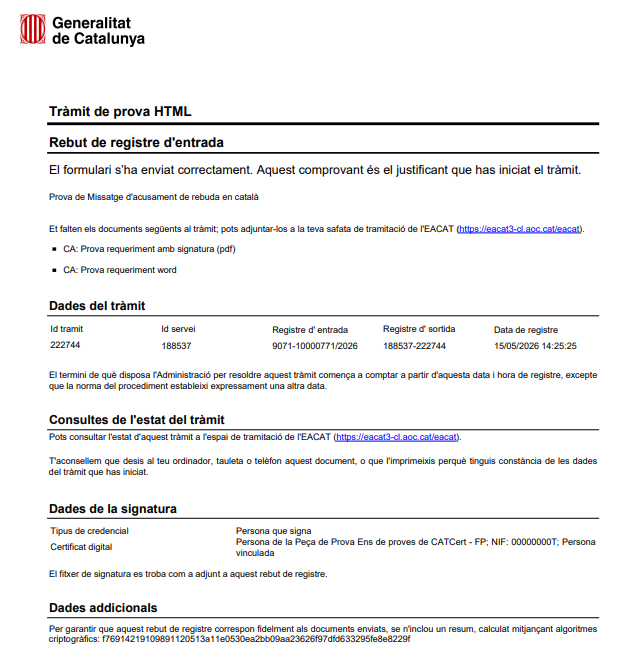
• You can view the completed procedure in the Sent tray of the Processing Space.