



 Copy link
1. What is it?
The Processing Space is the place where you can consult, manage and monitor your entity's inter-administrative procedures to which you have access.
2. What requirements do you need to access it?
You need to have the basic permission assigned within EACAT Procedures.
3. How can you access it?
Access EACAT >
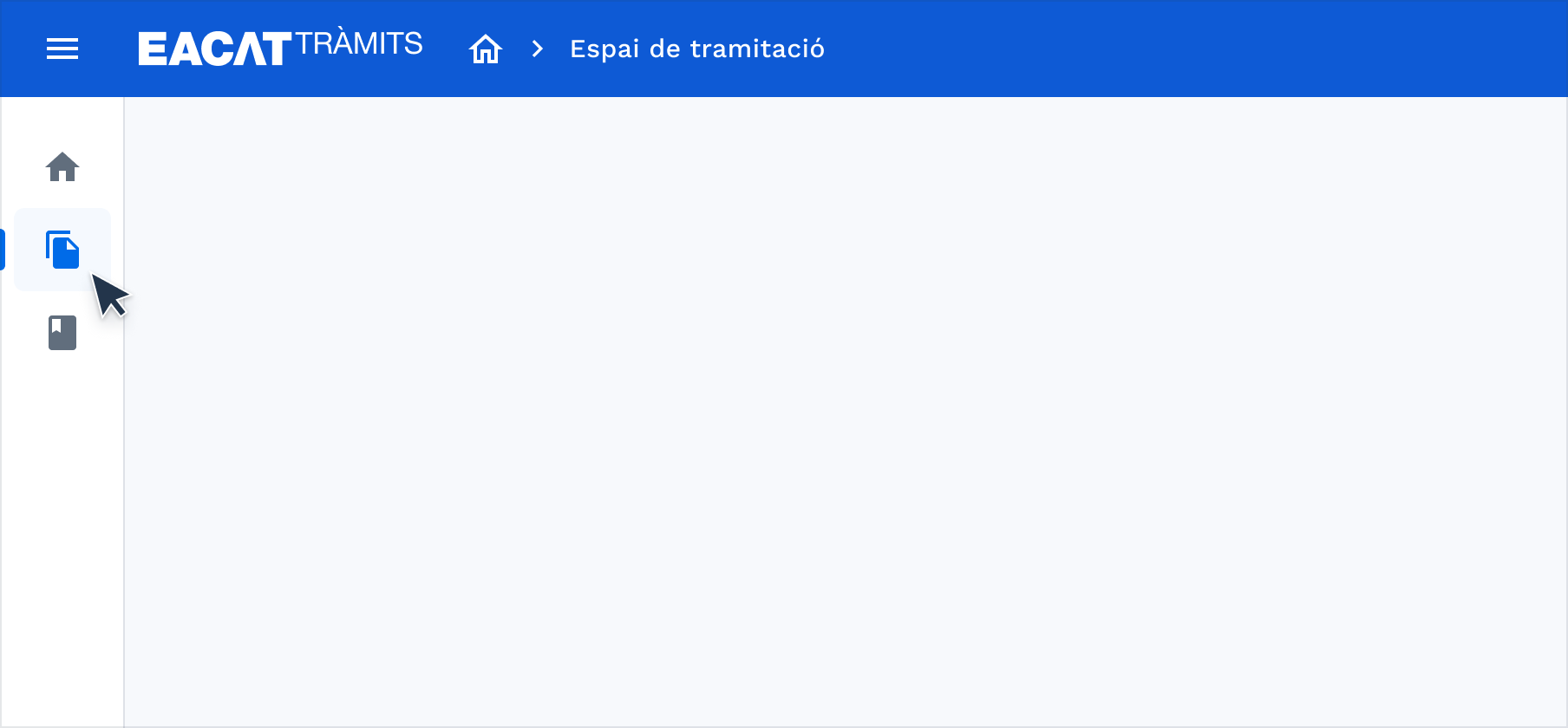
Press the file_copy icon ( Processing space ) in the left side menu.
4. What structure does it have?
The Processing Space includes the following elements:
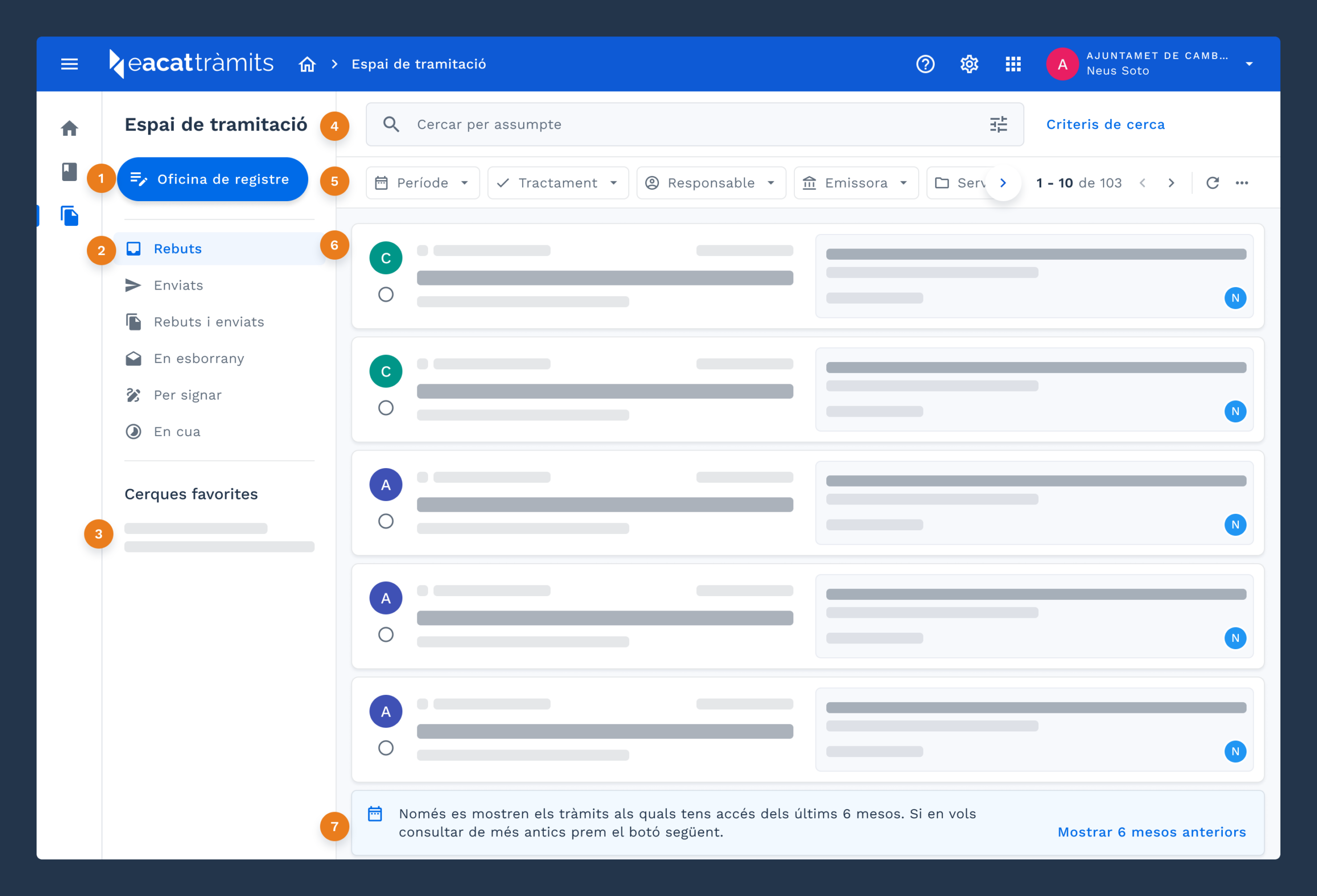
Registry office , to send paperwork.
Trays to group paperwork according to their status.
Favorite searches , for quick access to common searches.
The search engine and advanced search work with the filters you will find in the filter bar and some more.
You can also consult the Search Criteria , with information and tips to make your search more efficient.Filter bar , for direct access to the most used filters.
Results , shows the list of procedures that meet the search criteria.
Informational alert , at the end of the list of results it is indicated that, for reasons of efficiency, only a range of procedures is shown, which varies depending on whether they are completed or not:
Completed processing tray : The procedures from the last 6 months are displayed. You can consult previous periods by pressing the Show previous 6 months option.
Processes pending completion tray : Processes from the last 3 months are displayed. You can consult previous periods by clicking Show previous 3 months , with a limit of 500 results.
Exporting results , from the ... icon, you can export search results to a .csv file.
5. What procedures do you see in the results list?
As a user, you can view the procedures for the services to which you have access.
You may have access to a procedure for any of the following reasons :
The entity's manager has explicitly granted you access to the service.
Another user has shared a file with you, even if you do not have direct access to the service.
You started the process in the Classic EACAT and now you can consult it in the new EACAT, only if it concerns PDF forms or web forms from the AOC Consortium.
6. What information do you see when selecting a procedure?
When you select a results procedure , you have access to the following information and options:
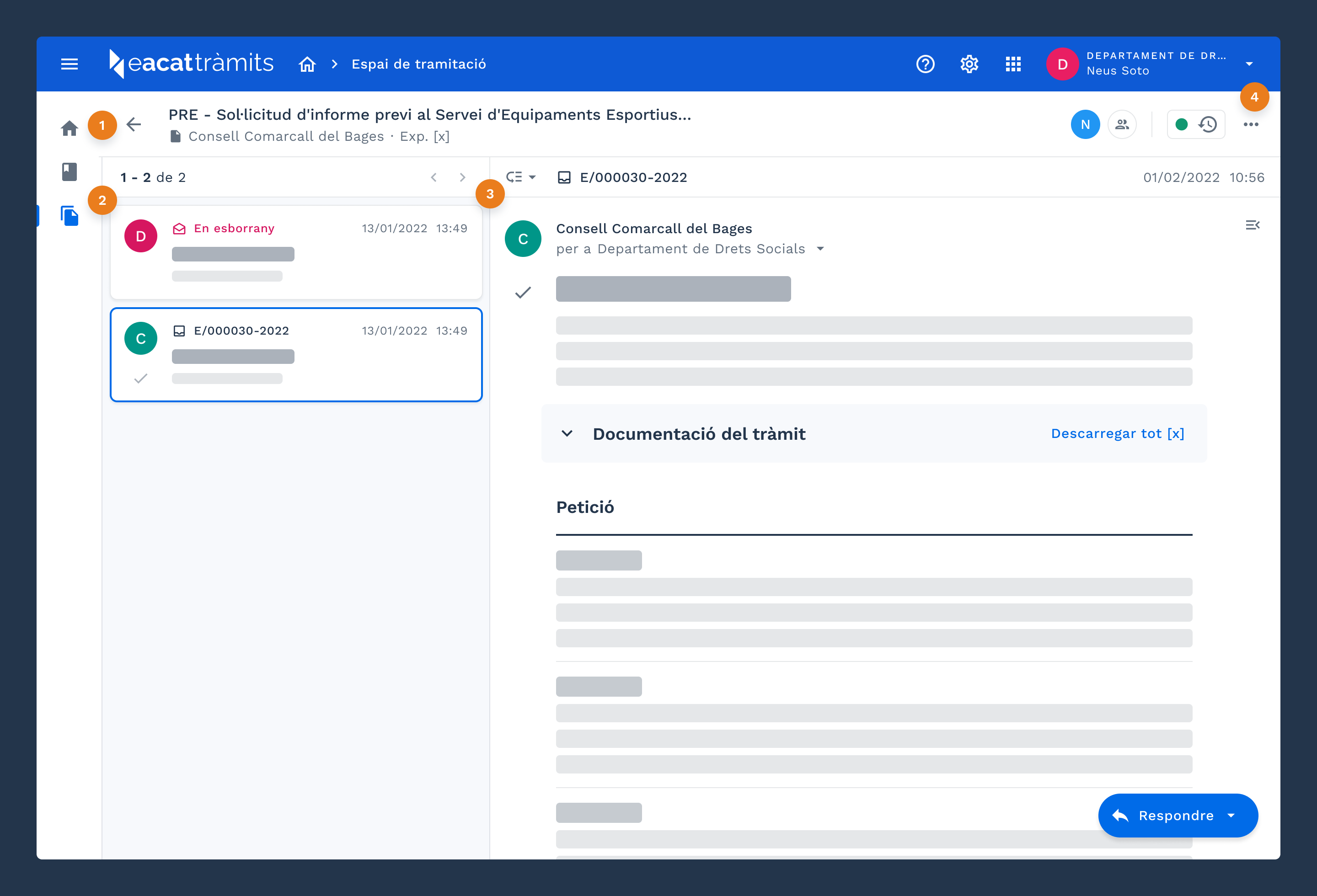
File information
Service title
Entity issuing the procedure
File number in your entity
If you click on any of these fields, the file details appear. You can also access them from the icon ...
File procedures appear in an orderly manner and with the basic registration information (registration number in our entity, date, time, name of the procedure and subject, if applicable).
Procedure information
Processing history low_priority , shows the procedures prior to the selected one and their responses.
Registration information : number, date and time
Name of the issuing entity
Name of the receiving entity
Procedure details arrow_drop_down , with the following registration information:
From: entity issuing the procedure.
For: entity receiving the procedure.
Date and time: date and time when the procedure was registered in the corresponding register.
Check-in:
Check-out
Case ID
Procedure ID
Name of the procedure and subject, if applicable
Additional functions regarding the procedure:
Download the procedure documentation
See the attached documentation
Respond, by clicking on the button that you will only find when the procedure has an answer.
In addition, from the ... icon , you can access the details of the file :
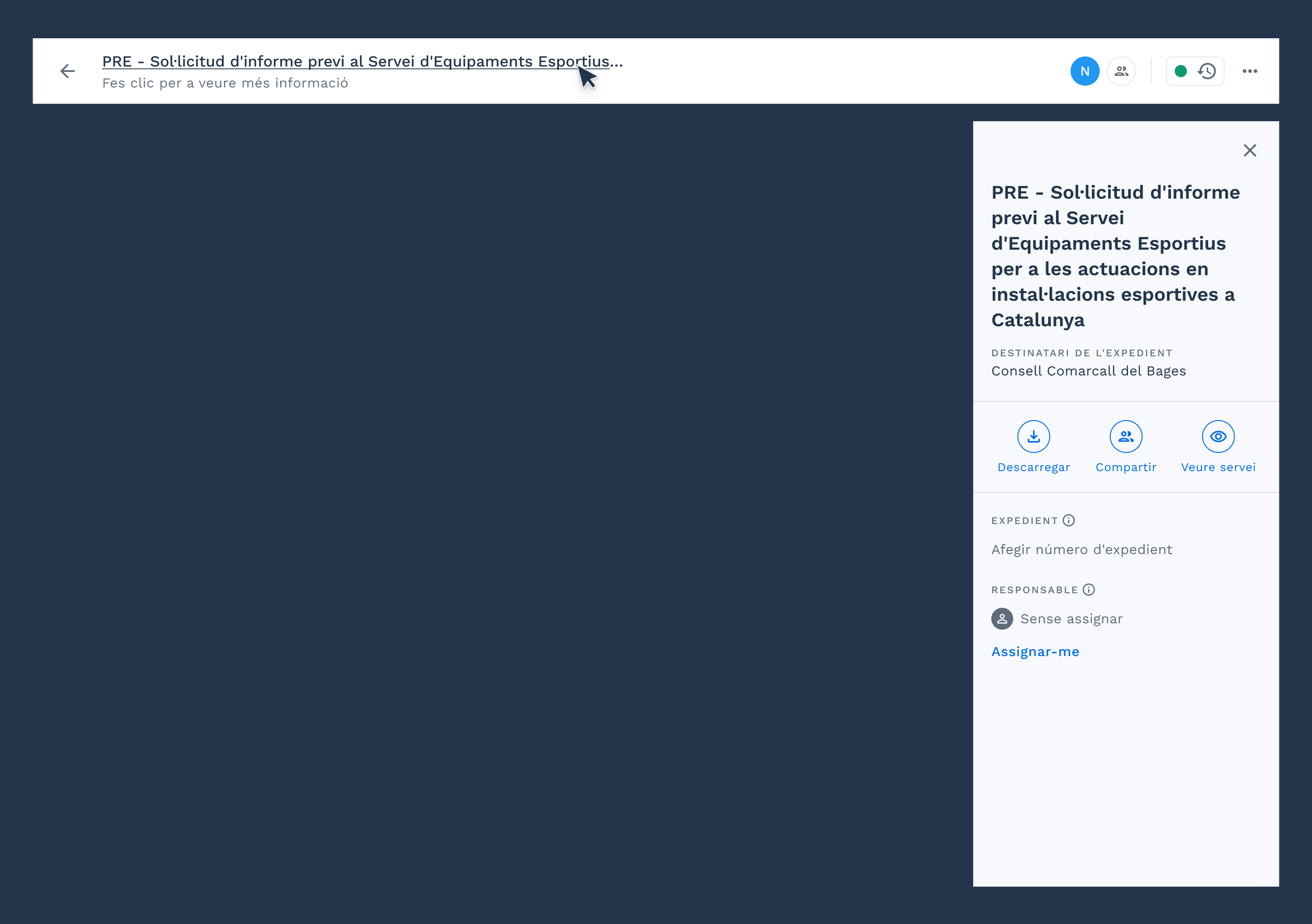
Basic information: title of the service and recipient.
Download download
Share group
See visibility service
File number in your entity
Assign responsible person
You can also take actions directly related to the procedure :
Respond to switch_access_shortcut , if applicable
Download documentation download , attached to the procedure
Show processing history low_priority
Print the procedure print
You will find the history of changes in the status of the file in the upper right. Currently, the beginning of the file is shown, but soon it will include information organized into two sections: procedure and file. This history guarantees transparency and traceability of the procedure.
7. What is the Registry Office?
The Registry Office is an electronic space that allows you to submit documentation associated with processing services between administrations. This office sends the documentation to the electronic registry of the recipient entity and returns the corresponding receipt.
Find related information at ET - What is the Registry Office?
8. What are the procedure trays?
The trays are used to organize the procedures to which you have access. We can group them into:
Trays with completed processing:
Received inbox , contains the procedures that your entity has received, that is, the entries.
Sent outbox_alt , there are the procedures that your entity has sent, that is, the outgoings.
Received and sent file_copy , groups the procedures that your entity has received and sent, that is, the inputs and outputs.
Trays with pending processing , which are currently being sent to EACAT Clàssic to be completed.
In drafts , it contains the procedures that you have created and that you are still working on. You will only find the procedures created with web forms from the Generalitat and the AOC Consortium. On the other hand, procedures created with PDF forms are saved on your computer when you download them and, therefore, they do not appear in this tray or in the To sign .
To sign draw , contains the procedures pending signature. Only procedures prepared with web forms from the AOC Consortium are shown. However, PDF forms and web forms from the Generalitat are not displayed. Work is underway to display the latter in the near future. We have temporarily disabled the To sign procedure tray for users who do not have signing permission, as it was causing confusion. We are currently working on improving this functionality in order to guarantee a better user experience. Once the improvements have been implemented, they will be reported in due course. This update will allow a clear distinction between: Procedures pending signature and Procedures in progress.
In timelapse queue, it contains the procedures that have not yet been completed due to technical issues.
For reasons of efficiency, only a range of procedures is shown, which varies depending on whether they are completed or not:
Completed processing tray : The procedures from the last 6 months are displayed. You can consult previous periods by pressing the Show previous 6 months option.
Pending processing tray : The procedures for the last 3 months are displayed. You can consult previous periods by clicking Show previous 3 months , with a limit of 500 results.
Find related information at ET - What types of forms are there in EACAT?
9. What is the search engine used for?
The search engine provides quick access to the procedures you have already completed and allows you to efficiently search for any specific information you need.
The Processing Area has two types of search engine:
The search engine, which allows you to search by entering keywords related to the procedure you are looking for. You can select to search on one of the following fields: subject, registration number, file number and procedure identifier.
The advanced tune search engine, which allows you to perform more precise searches using various filters.
For more accurate and relevant results, use both search engines and the filters in the filter bar.
When we talk about search engine, we always refer to the search engine for words in the Processing Space. Whenever we talk about the advanced search engine, we will specify it.
Find related information at:
ET – What is shown in search results: procedures or files?
ET - What is the function of the filter bar?
10. What are favorite searches?
This new feature allows you to save common queries for quick access . This simplifies access to recurring procedures, so you don't have to search manually every time you need to consult a specific procedure.
Actions you can take:
To save a favorite search , click advanced search tune and select the filters you think are appropriate > click Save search > give it a name that identifies it and click Save search .
To delete a favorite search , hover over the search name > delete > press Delete to confirm the action.
Save up to 10 searches . When you reach the maximum, if you want to save a new one, you will have to delete one first.
11. What actions can you take on the files?
Each procedure is associated with a file. After selecting a procedure, either from the information part of the file or from the ... icon, you can go to the file detail sheet and perform various actions.
When selecting a procedure, you can find the details of the file in two places:
File information, located in the upper left, by clicking on any of the information fields (service name, interested entity and entity file number).
Icon … > More information info
11. 1 Download a file
You can download a file from the file details > Download download
11.2 Sharing a file
You can share a file with another user from the file detail > Share group
You can have access to a file for three reasons: because the manager has given you access to the service; because they have shared the file with you; or because when you start a file in the EACAT Classic, despite not having access to the service in the new EACAT, you are the person responsible for it.
Find related information at:
ET - Who can share a file?
ET - How can you access a procedure?
11.3 Assign a person in charge to a file
You can assign a manager to a case from the case details in the following two ways:
Share group > Write the person's name > click the ... next to the person's name > Assign responsible person , if you want to designate any user of your entity.
Assign to me , to designate yourself as responsible for the file and share it.
Each case can only have one responsible person assigned, but this can be changed when necessary. Also, assigning a responsible person means that the case is automatically shared with them.
Find related information at ET - What does it mean to be responsible for a file?
11.4 Initiate a case
You can only initiate a file, starting an initial procedure from a service in the Services and Procedures Catalog.
Find related information at CST - How do you start an electronic procedure?
12. What actions can you take regarding the procedures?
When selecting a procedure you can perform several actions.
12.1 Search for a procedure
To search for procedures, you can follow these steps:
Select the tray that interests you most :
Received inbox
Sent outbox_alt
Received and sent file_copy
In draft
To sign draw
You should know that :
You can only view and search for the procedures to which you have access.
The procedures from the last 6 months are shown for completed procedures in the trays: Received , Sent , Received and sent ; and from the last 3 months for unfinished procedures in the trays: In draft and To sign .
Procedures carried out with PDF forms are only shown in the completed processing trays. Procedures carried out with web forms from the AOC Consortium and the Generalitat are also shown in the In draft tray. And in the To sign tray, only the web forms from the AOC Consortium are shown and work is underway to also show the Generalitat forms soon.
Procedures are available from January 1, 2017.
Use the search engine to get more accurate and relevant results. We also offer some useful tips:
Use filters to refine results (such as by service name or sending or receiving entity).
Enter specific and relevant keywords to search for “subject” and avoid overly generic terms that may show unhelpful results.
Use the “period” filter to consult older procedures, but keep in mind that only the results of the last 6 months will be shown, if they are completed procedures; or 3 months if they are procedures that are not yet completed. To consult previous procedures, modify the period in the search options or press the corresponding button ( Show previous 6 months or Show previous 3 months ) that you will find at the end of the search results.
Use the advanced tune search to further narrow down your results. You can use the following filters:
Territorial demarcation or region to locate procedures in a specific area.
Other filters to narrow your search:
Period : Define a date range to limit your search.
Shared with me: select it to see the procedures that have been shared with you.
Responsible : select one of the 3 options: All / I am responsible / I am not responsible.
Service : Select the specific service.
Sender/Receiver/Interested Party , depending on the tray in which you are searching (Received, Sent or Received and sent). Choose the entity involved in the process.
12.2 Responding to a procedure
In the procedure details you can respond to a procedure from:
The procedure information : click the Reply button to see the available options and select the appropriate response.
The actions icon … : access the procedure actions, select Reply and choose the most appropriate response.
Next, the action to be taken will depend on the technology of the selected procedure:
PDF form : it will be downloaded directly to your device, from where you can fill it out, sign it and send it.
Web form of the Generalitat , press Start to access the form and it opens in a new tab of the processing portal of the Generalitat of Catalonia, where you must press Access with digital identification and then Digital certificate , since access requires a public worker certificate (T-CAT).
Web form AOC , press Start , fill out the form and submit it by pressing Send .
Find related information at:
GT - How are the Generalitat's HTML forms processed?
ET - What types of forms are there in EACAT?
12.3 Sign a document
Any user who has access to a service and has been assigned the signature permission can sign a procedure. However, it is recommended that the preferred signatory, if any, sign the procedure. You can only select a preferred signatory if you are sending a procedure for signing that is a web form of the AOC Consortium that accepts informed signatories.
So, the web forms of the AOC Consortium are:
With informed signatories , when one or more signatories have been informed in a procedure, only these users will be able to sign it .
Without informed signatories , if no signatory has been indicated, the procedure can be signed by any user with signing permission who has access to the service.
The To sign tray display
This tray can only be viewed by users with signature permission, as it was confusing. We are currently working on improving this functionality to ensure a better user experience. This update will allow us to clearly differentiate between: Procedures pending signature and Procedures in progress.
By default, only the procedures where you are the preferred signatory are displayed ( I am the preferred signatory filter activated). The circle indicates the first letter of the preferred signatory and when the icon appears it implies that there is more than one preferred signatory.
If you deactivate the I am a preferred signatory filter, all the procedures that you can sign will be displayed:
Procedures assigned only to you as the preferred signatory show an icon with the initial of your name, indicating that only you can sign them.
Image
Procedures with multiple preferred signers (including you) display the icon with your initial and the icon. This indicates that you and other people can also sign the procedure.
Procedures without an assigned signer do not display any icon. This indicates that anyone with signing permissions and access to the service can sign them .
Image
Find information related to :
ET - Why doesn't the button to respond to the procedure appear?
ET - Why can't you find the documents in the process?
ET - How do you download the documentation attached to a procedure?
13. Can you export the results of a search?
Yes, by clicking on the icon ... > Export results (.csv) , the result.csv file will be downloaded.
This file has the following fields:
Process_id
Case_id
Procedure
Service
Origin_entity
Destination_entity
Subject
Login_Registration
Output_record
Date
14. What is the processing of a procedure?
The procedure processing functionality allows you to mark received procedures to indicate that they have already been handled. It also facilitates the identification of the last user who performed this action, enabling monitoring and coordination between users.
Any user can mark or unmark a received procedure for management. This can be done from:
The list of procedures received from the Procedures Space

The detail of a procedure received

A saved favorite search from the Inbox
You can also check the status of the processing from the Received and Sent processing tray, as well as from a favorite search of the Received and Sent processing list.
For ease of use, the Treatment drop-down filter has been added, available in both the filter bar and the advanced search. This filter offers the following options:
All
Untreated
Treaties
Treated by me
This functionality allows you to easily differentiate between procedures that have already been handled and those that are still pending. It is designed to facilitate the organization of work and make the monitoring of procedures within the entity more agile.