



 Copy link
1. What is it?
The Catalog of Services and Procedures (CST or Catalog) is the space where you can find inter-administrative processing services and start processing them. It includes specific services , with their associated procedures, those that each provider entity makes available to a specific group or recipient entity; and, in a separate section, generic services that cover common needs when there is no specific service available.
2. Key concepts
- strong>Provider: public entity that offers the service.
- Recipient: public entity to whom the service is addressed.
- Service , set of procedures to resolve an administrative need.
There are two types of services:- Specific, which is offered by a specific lending entity to a specific group of recipient entities, for a specific administrative action (e.g.: granting subsidies, authorizing activities, etc.)
- Generic, all public entities affiliated with EACAT are likely to have it active and it is not linked to a specific provider (e.g. generic request).
- Procedure , specific step of a service (does not exist without the service of which it is part).
There are two types of procedures:- Initial : first step of a procedure (eg: submitting an application) that is done from the Catalog.
- Response : continuation of a procedure already started (e.g. responding to requests or justifying expenses) that is carried out from the Processing Space.
From the Catalog you will only be able to carry out procedures that initiate a file, that is, initial procedures.
3. Access
- You must have the basic permission assigned to EACAT Procedures, as a requirement.
- Press the book icon from the left menu to access the Catalog.
4. Structure

1. Image with the title of the CST
2. Selector to choose:
- Published catalog
- Unpublished catalog /li>
And, Search bar , where you can search by words or do an advanced search by pressing tune
3. Filter bar
By default, and before performing a search , the options Within the deadline filter and I am the recipient of the Recipient filter are activated. You can also access Search Tips.
But if you do a search, the filters appear:
- All / Services / Procedures, if you select Procedures you will see 2 additional options which are the procedures:
- Initials
- About to finish
- Other filters that appear are:
- Deadline
- Lender
- Recipient /li>
- Advanced Search button
4. Sections , which appear in the initial view of the Catalog, help to organize it better and access services efficiently. The sections are:
- Procedures about to be completed
- Favorite services , if you have saved any services
- New services published
- Generic services , where you will also find the registration office
5. Number of results and order of results (search tips)
6. Results appear if you have performed a simple or advanced search, or if you have selected a filter from the filter bar.
When you select a service or procedure from Results , you will see:
- The service sheet
- The procedure sheet
You view the sections when you access the Catalog, when you press the book icon in the left menu.
The advanced search engine includes the filters in the filter bar and some more (typology, topic and subtopic).
5. Favorite services
Favorite services are those that you mark to always have them visible in the Favorite Services section of the Catalog. This section allows you to quickly access the services you use most often and keep your catalog organized.
You can save up to 10 services as favorites. If you want to add a new one and you've already reached the limit, you'll need to delete one first.
You can view this section:
- In the initial view of the Catalog , you can see your favorite services and remove them individually by pressing bookmark.
- From your personal profile in the navigation bar, pressing arrow_drop_down Favorite services . Here you can view all your favorite services and delete them one by one by pressing bookmark or all at once with the Delete services button.
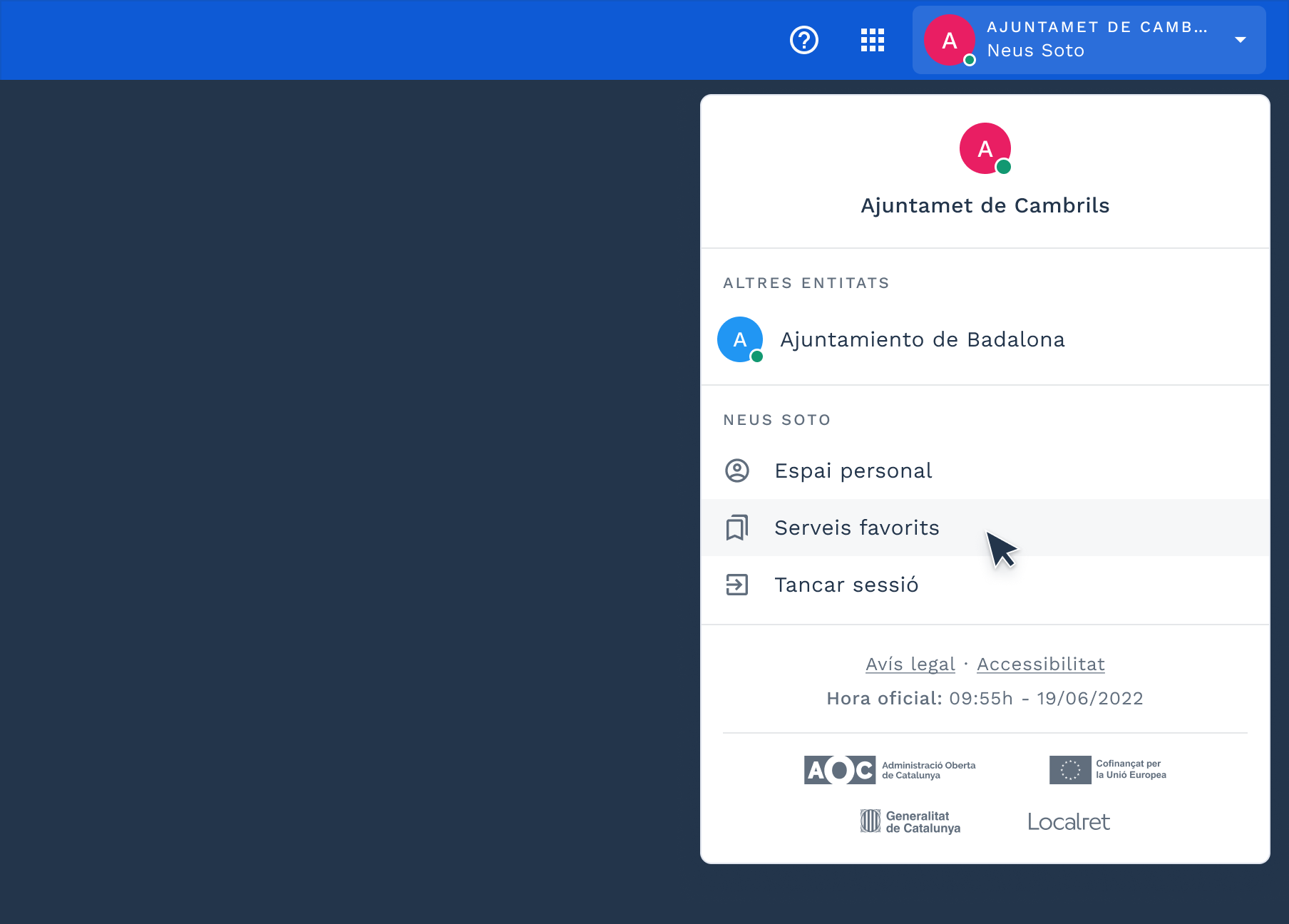
You will only see the Favorite Services section if you have saved any services.
6. Search for services and procedures
To search for specific services and procedures in the Catalog you can:
- Use the search engine, entering keywords related to the service or procedure you need.
If you need more accurate and relevant results, we recommend following these search tips :- Choose specific terms and eliminate irrelevant terms.
- Narrow your search to Services .
- Check if a service is unpublished.
- Using advanced search allows you to narrow your results more precisely:
- Explore by service provider.
- Use typologies or topics and subtopics: the catalog is organized into typologies as well as thematic and subtopic areas. Select the topic and subtopic that best fits your search.
- Apply other advanced search filters: you can refine your search by filtering by Results (All, services, procedures), Deadline (on time, overdue and pending), Provider , Recipient (all, I am the recipient, I am not the recipient). If you select Procedures , you can also search by Initial and About to be completed procedures.
7. Service sheet
The form shows the key information for a service, which may vary depending on the data provided by the provider. However, if all sections are completed, you will find the following information:
- Title
- Lender (entity that offers it).
- Management icons to add or remove the service from favorites
- Start and end dates .
- Associated procedures : initial (with Start button) and response, with their status (on time, overdue, pending, unpublished). It also indicates who carries out each procedure: the recipient entity or the provider.
- Description and objectives of the service.
- Recipient (entity that can use it).
- Documentation to be submitted and applicable regulations .
- Typology, topic and subtopic , which are the categories where the service is located.
If you do not have access to the service, an alert appears and you can request it from the person managing your entity.
8. Procedure sheet
Information about a procedure is found in the Procedure Sheet , which may vary depending on the data provided by the lending entity.

If all sections are completed, you will find the following information:
- Title of the procedure.
- Information on whether the procedure is: On time / About to end / Out of time / On hold.
- Initial or response procedure.
- Deadline : Start and End, which is the period to process the service.
- Who carries out the procedure : the lending entity or the recipient.
- Start button , if applicable.
- Content , which includes:
- Description
- How to do it
- Documentation
- Additional information
- Responses , which are the procedures for responding to the procedure.
The procedure information always includes details of the service to which it belongs to provide you with context.
9. Initiate a procedure
If you want to initiate a procedure:
- Search and select the service.
- If you do not have access, request it from the person managing your entity from the service file.
- Press Start in the process. Depending on the technology, a PDF will be downloaded or the web form will open in EACAT Classic or the new EACAT, depending on the web form in question.
- Fill out and process the form (PDF or web).
10. Request access to an inter-administrative processing service
If you do not have access to a service that you need to process, you can request it from the person managing your entity from the Catalog of services and procedures and from the Personal Space:
- book Catalog of services and procedures > When selecting a service, 2 situations can occur:
- You do not have access to the service because your manager has not given it to you> Request access
- Your entity is not a recipient of the service> Request access
In both cases, an alert will appear and you will have to press Request access ; select your manager and send them an email requesting access to the service or asking them to contact the provider, who will evaluate whether your entity can be considered a recipient of the service, respectively. - account_circle Personal space > Services > Unassigned > Request access